OpenID Connect (OIDC)
Anaphora supports login through OAuth 2.0 / OpenID Connect providers. OIDC is simpler to set up than SAML and has similar enterprise features.
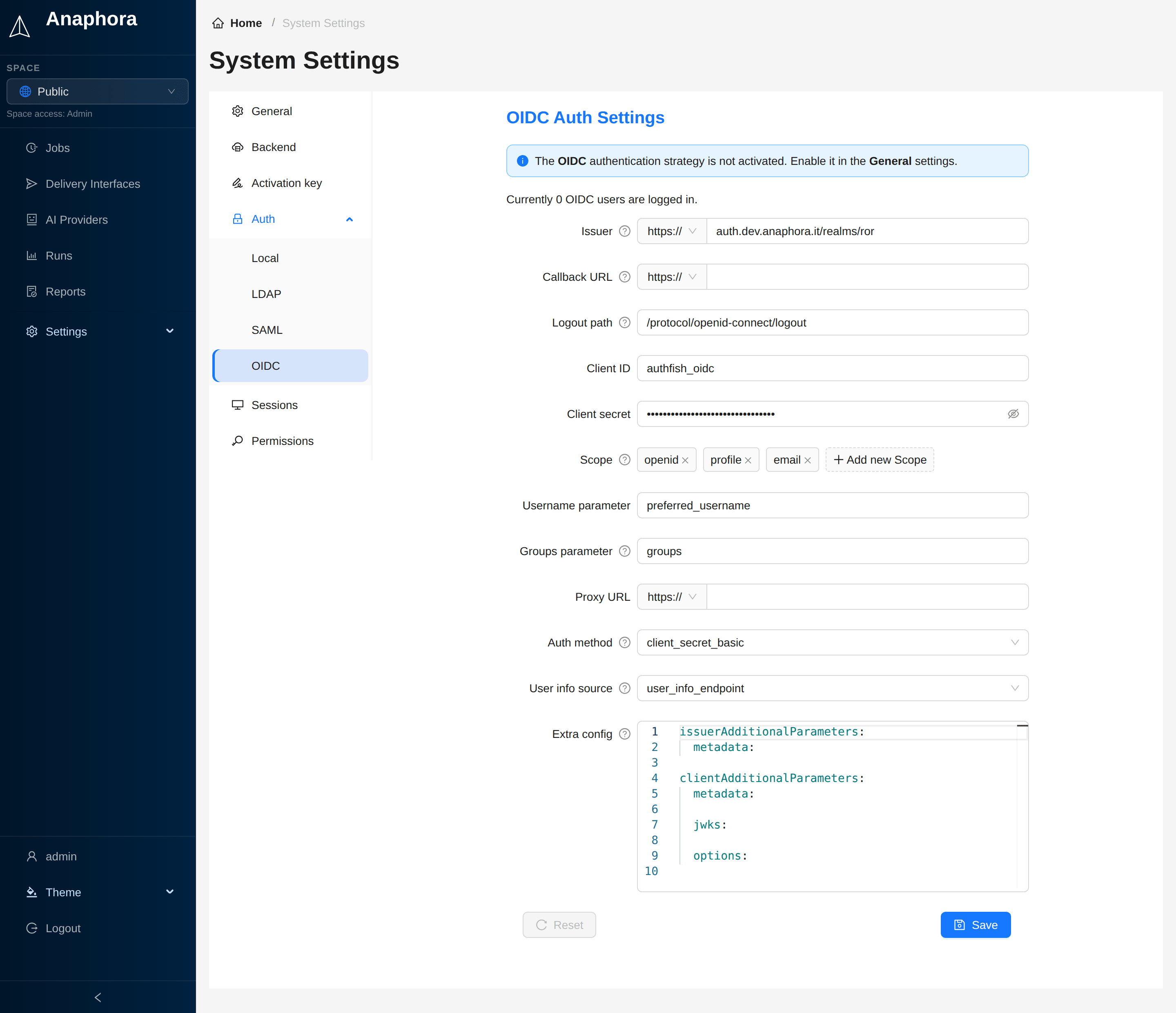
Overview
OIDC is built on OAuth 2.0 and has fewer settings than SAML. Anaphora discovers the provider configuration automatically through the well-known endpoint. Sessions are token-based, with secure, stateless authentication.
Supported providers
| Provider | Issuer URL | Notes |
|---|---|---|
https://accounts.google.com | Google Workspace or personal | |
| Auth0 | https://your-tenant.auth0.com | Full-featured IdP |
| Keycloak | https://keycloak.company.com/realms/your-realm | Self-hosted option |
| Okta | https://your-org.okta.com | Enterprise IdP |
| Azure AD | https://login.microsoftonline.com/{tenant}/v2.0 | Microsoft cloud |
| OneLogin | https://your-domain.onelogin.com/oidc/2 | Enterprise SSO |
| Ping Identity | https://auth.pingone.com/{env-id}/as | Enterprise |
| Custom | Any OIDC-compliant issuer | Must support discovery |
Configuration
Step 1: Create an OAuth application
Create an OAuth/OIDC application in your identity provider.
Google
- Go to Google Cloud Console
- APIs & Services > Credentials > Create Credentials > OAuth Client ID
- Application type: Web application
- Authorized redirect URIs:
https://anaphora.company.com/auth/login-oidc/callback - Copy Client ID and Client Secret
Auth0
- Applications > Create Application
- Choose "Regular Web Application"
- Settings tab:
- Allowed Callback URLs:
https://anaphora.company.com/auth/login-oidc/callback - Allowed Logout URLs:
https://anaphora.company.com/auth/login
- Allowed Callback URLs:
- Copy Domain, Client ID, and Client Secret
Keycloak
- Clients > Create Client
- Client ID:
anaphora - Client Protocol: openid-connect
- Access Type: confidential
- Valid Redirect URIs:
https://anaphora.company.com/auth/login-oidc/callback - Backchannel logout URL:
https://anaphora.company.com/auth/logout-oidc/backchannel, with Backchannel logout session required on (optional, see Logout) - Copy Client Secret from Credentials tab
Okta
- Applications > Create App Integration
- Sign-in method: OIDC
- Application type: Web Application
- Sign-in redirect URIs:
https://anaphora.company.com/auth/login-oidc/callback - Copy Client ID and Client Secret
Azure AD
- App registrations > New registration
- Redirect URI: Web >
https://anaphora.company.com/auth/login-oidc/callback - Certificates & secrets > New client secret
- Copy Application (client) ID and secret value
Step 2: Configure Anaphora
- Go to Settings > System > Auth > OIDC
- Enter the configuration:
| Field | Description | Example |
|---|---|---|
| Issuer | URL of the provider. Other paths are relative to it. Required | https://accounts.google.com |
| Callback URL | Full callback URL. Empty uses the default (see below) | https://anaphora.company.com/auth/login-oidc/callback |
| Logout path | Path of the provider logout endpoint. With the default, Anaphora uses the end_session_endpoint that the provider publishes (see Logout). Default: /protocol/openid-connect/logout | /protocol/openid-connect/logout |
| Client ID | OAuth client identifier. Required | abc123def456 |
| Client secret | OAuth client secret (stored encrypted). Required | |
| Scope | Requested scopes. Default: openid, profile, email | openid email profile |
| Username parameter | Claim for the username. Default: preferred_username | preferred_username |
| Groups parameter | Claim for the groups/roles. Default: groups | groups |
| System groups | Groups whose users get the system role (see System groups) | /anaphora-admins |
| Proxy URL | Proxy for the requests to the provider | http://proxy.company.com:3128 |
| Tls insecure skip verify | Turns off the check of the TLS certificate of the provider. Not recommended (see The TLS certificate of the issuer) | |
| Tls CA cert | CA certificate (PEM) of the provider or the proxy, trusted next to the public CAs | |
| Proxy tls insecure skip verify | Turns off the check of the TLS certificate of an HTTPS proxy. Only this setting does that | |
| Clock tolerance seconds | Clock difference with the provider, in seconds, that the ID token and the logout token can have. Default: 0 | 30 |
| Auth method | Token endpoint auth method (see below) | client_secret_basic |
| User info source | Source of the user profile (see below) | user_info_endpoint |
| Extra config | YAML object with more options (see below) |
- Click Save
- To activate OIDC, add
oidcto Strategies in Settings > System > General
You can also set OIDC with environment variables. Then the environment owns the OIDC settings, and the settings page cannot change them. See Configure from the environment.
Callback URL
The IdP redirects users to the Callback URL after authentication.
Default: https://<anaphora-external-url>/auth/login-oidc/callback
Add this URL to the allowed redirect URIs of your IdP:
| Provider | Setting location |
|---|---|
| Authorized redirect URIs | |
| Auth0 | Allowed Callback URLs |
| Keycloak | Client Settings > Valid Redirect URIs |
| Okta | Sign-in redirect URIs |
| Azure AD | Redirect URIs |
In Keycloak, go to Clients > your client > Settings > Valid Redirect URIs and add the callback URL.
Step 3: Configure scopes
Set the Scope field to the scopes you need.
Default: openid, profile, email
| Scope | Data returned |
|---|---|
openid | Required for OIDC |
email | User email address |
profile | Name, picture, etc. |
groups | Group memberships (provider-specific) |
Be careful with custom scopes. A scope that does not exist can cause authentication errors, such as redirect loops back to the login URL after authorization.
Configure from the environment
Instead of the settings page, you can configure OIDC with environment variables. This is an Enterprise feature.
| Variable | Required | Default | Description |
|---|---|---|---|
OIDC_ISSUER | Yes | The issuer URL, as the browser reaches it | |
OIDC_CLIENT_ID | Yes | The client ID | |
OIDC_CLIENT_SECRET | Yes | The client secret | |
OIDC_INTERNAL_ISSUER | No | The issuer URL as the Anaphora container reaches it, when the two are not the same | |
OIDC_SCOPES | No | openid profile email | The scopes to request, separated by spaces |
OIDC_USERNAME_CLAIM | No | preferred_username | The claim that names the user |
OIDC_GROUPS_CLAIM | No | groups | The claim that lists the user's roles |
OIDC_TLS_CA_CERT | No | A CA certificate (PEM) to trust next to the public CAs, for the TLS certificate of the issuer | |
OIDC_TLS_INSECURE_SKIP_VERIFY | No | false | true turns off the check of the TLS certificate of the issuer |
OIDC_CLOCK_TOLERANCE_SECONDS | No | 0 | The clock difference with the provider, in seconds, that the ID and logout tokens can have |
OIDC_SYSTEM_GROUPS | No | Groups, separated by commas. A user in one of them gets the system role (the Settings menu) |
- The three required variables switch OIDC on. A partial set logs a warning and leaves OIDC off.
- A value that is not valid also leaves OIDC off: a CA that does not parse or that holds more than complete
certificates, a switch that is not
trueorfalse(1or0), or a tolerance that is not a whole number of seconds. OIDC is then off, also when Authfish keeps an older copy of these settings in its database. - An optional variable without the three required ones changes nothing, and the start log names it.
- The identity provider must allow the callback
<PUBLIC_URL>/auth/login-oidc/callback. - The identity provider must send the user's roles (
admin,user,superuser) in the claim thatOIDC_GROUPS_CLAIMnames. - The environment owns these settings. The settings page cannot change them, and Anaphora does not save them in its database.
- A new installation starts with OIDC in its list of sign-in methods. On an existing installation, switch OIDC on under Settings, in the list of sign-in methods.
- Anaphora reads the variables at every start.
The other settings use fixed values: client_secret_basic as auth method and the userInfo endpoint as user info
source. The logout goes to the logout endpoint that the provider publishes. With OIDC_INTERNAL_ISSUER, it goes to
<OIDC_ISSUER>/protocol/openid-connect/logout, the Keycloak form.
System role from the environment
OIDC_SYSTEM_GROUPS lists the groups whose users get the system role, as the groups claim names them, for example
OIDC_SYSTEM_GROUPS=admin. Use a name that is unique at the provider: a Keycloak realm role, or the full path of a
group (/admins), because group names can repeat under different parents. Names match whole and with case. When the
variable is not set, no OIDC user gets the system role. See System groups.
The TLS certificate of the issuer
Anaphora checks the TLS certificate of an https issuer. The certificate must chain to a public CA or to
OIDC_TLS_CA_CERT. It must also name the address in the issuer URL: for an IP address, an IP address entry in its
subjectAltName. The issuer URL here is OIDC_INTERNAL_ISSUER when it is set, else OIDC_ISSUER.
OIDC_TLS_CA_CERT takes the text of the PEM file, with its line breaks, or on one line with \n in place of each line
break. A bundle of more than one certificate is accepted, and the OpenSSL TRUSTED CERTIFICATE form too. A private key
in the text is refused.
OIDC_TLS_INSECURE_SKIP_VERIFY=true turns the check off, the name check included. The connection to the issuer is then not
protected, so use it only for a test. When both are set, the CA wins: the check stays on, and
the start log says that the switch is ignored. The start log line [oidc] issuer ... names each of these settings
that is on.
From 0.17.0, an https issuer URL on an IPv4 address, on localhost, on a *.localhost name or on [::1] needs
one of these:
- The certificate names that address and chains to a public CA: no action.
- The certificate names that address: set
OIDC_TLS_CA_CERTto its CA. This is the preferred fix. - The certificate names a host name only: put that host name in the issuer URL and set
OIDC_TLS_CA_CERT, or setOIDC_TLS_INSECURE_SKIP_VERIFY=true.
Without one of them, OIDC sign-in stops, and local users can still sign in. The start log says
OIDC issuer discovery failed: and the reason: self-signed certificate, unable to verify the first certificate (a
private CA) or Hostname/IP does not match certificate's altnames. The upgrade script shows that line when the upgrade
is done.
OIDC that you set up in the settings page needs no action: the upgrade turns on Tls insecure skip verify where the old rule skipped the check, and the start log warns about it. Set Tls CA cert instead.
When the browser reaches Keycloak at a public URL and the Anaphora container reaches it at an internal URL, set
OIDC_ISSUER to the public URL and OIDC_INTERNAL_ISSUER to the internal one, for example
http://keycloak:8080/realms/your-realm. Anaphora uses the internal URL for discovery and for the calls from the
server. Keycloak must publish the browser endpoints under the public URL (KC_HOSTNAME_BACKCHANNEL_DYNAMIC=true).
Claim mapping
Map OIDC claims to the Anaphora user fields.
Standard claims
| Anaphora field | OIDC claim | Description |
|---|---|---|
| Username | preferred_username (set in Username parameter) | Unique identifier |
email | User email | |
| Display name | name | Full name |
Group claims
The group claim name is different for each provider:
| Provider | Groups claim |
|---|---|
groups (requires Workspace) | |
| Auth0 | https://your-app/roles (custom) |
| Keycloak | groups or realm_access.roles |
| Okta | groups |
| Azure AD | groups |
Custom claim mapping
- Go to Settings > System > Auth > OIDC
- Set the claim names:
Username parameter: preferred_username
Groups parameter: groups
Group-based roles
Map IdP groups to Anaphora roles.
Groups parameter
The Groups parameter is the claim that contains the group or role information. Default: groups.
The claim is a list of groups, or one string for one group.
You must configure your IdP to include roles/groups in the ID token.
In Keycloak:
- Go to Client Scopes > profile
- Select Mappers > Add mapper > From predefined...
- Add the groups mapping
Role mapping
Each IdP group becomes an Anaphora role with the same name.
- Go to Settings > System > Permissions
- In a space, add a permission for the role, and set its access:
| IdP group/role | Access |
|---|---|
anaphora-admins | Admin |
anaphora-editors | Read Write |
anaphora-viewers | Read Only |
System role
A user in one of the System groups gets the system role: the Settings menu and Admin access to every space. See System groups.
Auth0 roles example
In Auth0, use Rules or Actions to add roles to tokens:
// Auth0 Action
exports.onExecutePostLogin = async (event, api) => {
  const roles = event.authorization?.roles || [];
  api.idToken.setCustomClaim('roles', roles);
};
Then, in Anaphora:
- Set Groups parameter to
roles - In Settings > System > Permissions, give
adminthe Admin access andeditorthe Read Write access
Advanced settings
Auth method
The Auth method sets how Anaphora sends the credentials to the token endpoint.
Default: client_secret_basic
| Method | Description |
|---|---|
client_secret_basic | Sends the client ID and secret in the Authorization header (URL-encoded). The standard method for most providers. |
client_secret_post | Sends the client ID and secret in the request body (not encoded). Use it when your provider cannot decode encoded values (for example, LemonLDAP). |
User info source
The User info source sets where Anaphora gets the user profile information.
Default: user_info_endpoint
| Source | Description |
|---|---|
user_info_endpoint | Makes one more call to the userInfo endpoint to get the latest profile data. |
access_token | Reads the profile information from the access token. |
id_token | Reads the profile information from the ID token. |
Extra configuration
The Extra config field accepts a YAML object with two optional sections:
| Section | Description |
|---|---|
issuerAdditionalParameters | Change the OIDC issuer discovery |
clientAdditionalParameters | Change the OIDC client configuration |
issuerAdditionalParameters:
  metadata:
    jwks_uri: https://example.com/.well-known/jwks.json

clientAdditionalParameters:
  metadata:
    default_max_age: 0
For the available options, see:
Use extra configuration options with caution. Incorrect settings may break OIDC authentication.
Session settings
| Setting | Where | Description |
|---|---|---|
| Max age hours | Settings > System > Backend | How long an Anaphora session lasts. Default: 60 |
| Logout path | Settings > System > Auth > OIDC | Logout from the IdP when you log out of Anaphora |
For Keycloak, also add https://<anaphora-external-url>/auth/login to Valid post logout redirect URIs.
Logout
When a user logs out of Anaphora, Anaphora ends the session, then sends the browser to the end_session_endpoint that
the provider publishes, with client_id, post_logout_redirect_uri and id_token_hint. A Logout path that you
set to another value wins. A provider without a logout endpoint (Google) ends the session in Anaphora only.
A logout at the provider (in another application of the realm, by an admin, or on the account page) can end the Anaphora session too. Set the back-channel logout URL of the client to:
<PUBLIC_URL>/auth/logout-oidc/backchannel
In Keycloak, this is Backchannel logout URL, with Backchannel logout session required on. The logout token
must be signed by the issuer for this client and be at most 5 minutes old, and each token works once. It ends every
session with its sid (or, without one, its sub), in every browser.
Discovery settings
Anaphora reads the provider endpoints from <Issuer>/.well-known/openid-configuration. There are no separate fields
for them. To change an endpoint, for example jwks_uri, use issuerAdditionalParameters.metadata in Extra config.
Testing
Test OIDC configuration
- Log out, then click Continue with OIDC on the login page
- Anaphora sends you to your IdP
- Log in with IdP credentials
- Make sure that the IdP sends you back to Anaphora
- Make sure that the user gets the correct spaces
Debug mode
At each OIDC login, the Anaphora log shows the user profile at the info log level:
- Make sure that Log level in Settings > System > General is
info,debugortrace - Try to log in
- Find the line
OIDC login from ...in the Anaphora log - Make sure that the groups/roles are present
Troubleshooting
| Issue | Solution |
|---|---|
| Invalid redirect URI | Make sure that the callback URL is the same in both systems |
| Invalid client | Check the Client ID and Secret |
| Discovery failed | Check Issuer, make sure that /.well-known/openid-configuration is accessible |
| Groups not received | Check Scope, Groups parameter and the IdP configuration |
| Token expired, or not yet valid | Check clock synchronization (NTP), or set Clock tolerance seconds |
OIDC issuer discovery failed: in the log | See The TLS certificate of the issuer |
| User has no username | Check Username parameter. A profile without that claim is refused |
When the sign-in at the provider fails (for example an expired login page), the browser goes back to the Anaphora login page, which shows the reason.
Common errors
"invalid_client"
- The Client ID or Secret is incorrect
- The Client Secret can be expired (make a new one)
"redirect_uri_mismatch"
- The Callback URL in Anaphora is not the same as in the IdP configuration
- Check for trailing slashes, and for http instead of https
"invalid_scope"
- The IdP does not allow a requested scope
- Remove the unsupported scopes
Provider-specific notes
Google Workspace
To get group memberships:
- Enable the Directory API in Google Cloud Console
- Configure domain-wide delegation
- Add the
https://www.googleapis.com/auth/admin.directory.group.readonlyscope
Azure AD
For group claims:
- App registration > Token configuration > Add groups claim
- Choose "Groups assigned to the application" for large directories
Keycloak
Keycloak includes groups by default. Configure client mappers for custom claims.
Best practices
- Use HTTPS for all endpoints
- Store Client Secret securely (Anaphora encrypts it)
- Request only the scopes you need
- Map groups to roles for scalable access management
- Monitor token expiration and refresh behavior