LDAP / Active Directory
Connect Anaphora to your enterprise directory to manage users in one place. Anaphora supports Microsoft Active Directory, OpenLDAP, and other LDAP-compliant directories.
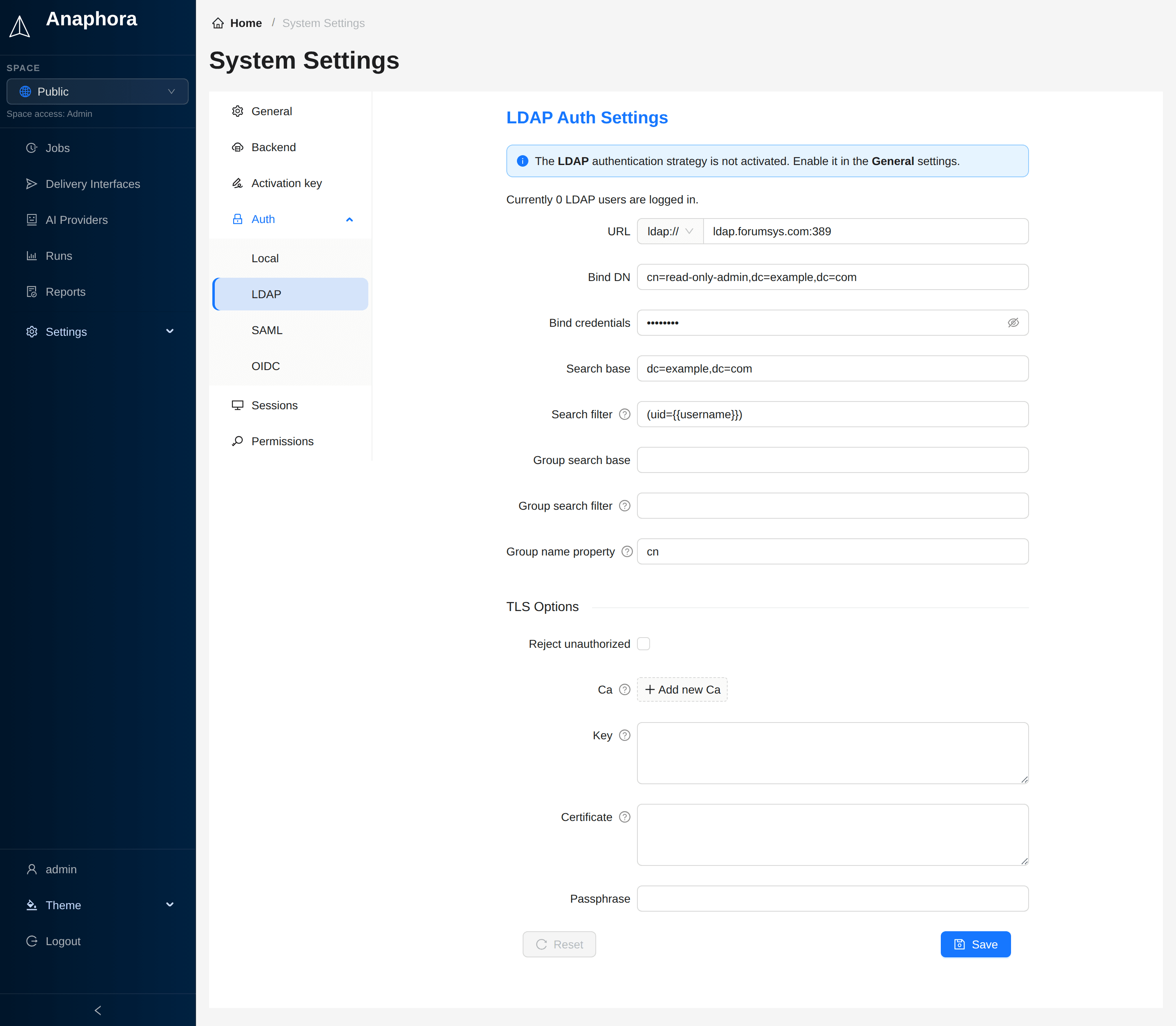
Overview
With LDAP, you manage users in the corporate directory and map AD groups to Anaphora roles. Anaphora does not store passwords: the directory validates them. Anaphora creates each user at the first login.
Configuration
Go to Settings > System > Auth > LDAP to configure. To activate LDAP, add ldap to Strategies in
Settings > System > General.
| Field | Description | Example | Required |
|---|---|---|---|
| URL | LDAP server address | ldap://ldap.forumsys.com:389 | Yes |
| Bind DN | Service account for binding | cn=read-only-admin,dc=example,dc=com | Yes |
| Bind credentials | Service account password | (stored securely) | Yes |
| Search base | Base DN for user search | dc=example,dc=com | Yes |
| Search filter | LDAP filter for user lookup | (uid={{username}}) | Yes |
| Group search base | Base DN for group search | ou=groups,dc=example,dc=com | No |
| Group search filter | LDAP filter for groups | (member={{cn}}) | No |
| Group name property | Attribute for group name | cn (default) | No |
| System groups | Groups whose users get the system role | CN=Anaphora Admins,OU=Groups,DC=example,DC=com | No |
| Reject unauthorized | Enforce TLS certificate checks | false (unchecked, default) | No |
| Ca | Certificate authority | PEM file contents, one or more | No |
| Key | Client private key | PEM file contents | No |
| Certificate | Client certificate | PEM file contents | No |
| Passphrase | Passphrase for the client key | No |
Group to role mapping
Use the group search to get LDAP groups and map them to Anaphora roles.
In the Group search filter, use {{<attribute>}} placeholders to reference attributes of the login user, for
example {{username}}, {{dn}}, {{uid}} or {{cn}}.
Use the Group name property to specify the attribute that becomes the role name.
Give these roles access to spaces in Settings > System > Permissions.
A group whose name attribute has more than one value (cn: [ops, operations]) gives one role per value. A group
without that attribute gives no role.
System role
A user in one of the System groups gets the system role: the Settings menu and Admin access to every space.
Use the group DN, with dn as Group name property: a directory can hold a second group with the same cn in
another OU. Without Group search base and Group search filter, no user has a group, and the start log warns
when System groups is set. See System groups.
SSL/TLS configuration
For secure connections use LDAPS (port 636):
| Protocol | Port | Security |
|---|---|---|
| LDAP | 389 | Unencrypted (not recommended) |
| LDAPS | 636 | SSL/TLS encrypted |
| StartTLS | 389 | Upgraded to TLS |
For ldaps://, Anaphora does not check the certificate of the server unless Reject unauthorized is on. The start
log warns while the check is off. To turn the check on, paste the CA of the server in Ca and turn on
Reject unauthorized.
If your LDAP server requires TLS client authentication, fill in Ca, Key and Certificate under TLS Options. Paste the contents of the certificate or key file.
Active Directory specifics
Service account
Create a dedicated service account for Anaphora:
- Create user in AD:
anaphora-svc - Set password to never expire (or manage rotation)
- Grant "Read all user information" permission
- The account does not need admin privileges
Debug mode
Enable LDAP debug logging:
- Go to Settings > System > General
- Set Log level to
debug - Reproduce the issue
- Review logs for detailed LDAP communication
Best practices
- Use a dedicated service account with minimal permissions
- Always use LDAPS for encrypted connections
- Test configuration changes in staging first
- Map groups to roles instead of assigning individual users
- Monitor the service account for lockouts or password expiration