Spaces
Spaces isolate workspaces for multi-tenancy in Anaphora. Each Space is a "share-nothing" container that completely separates its resources from those of other teams, projects or tenants.
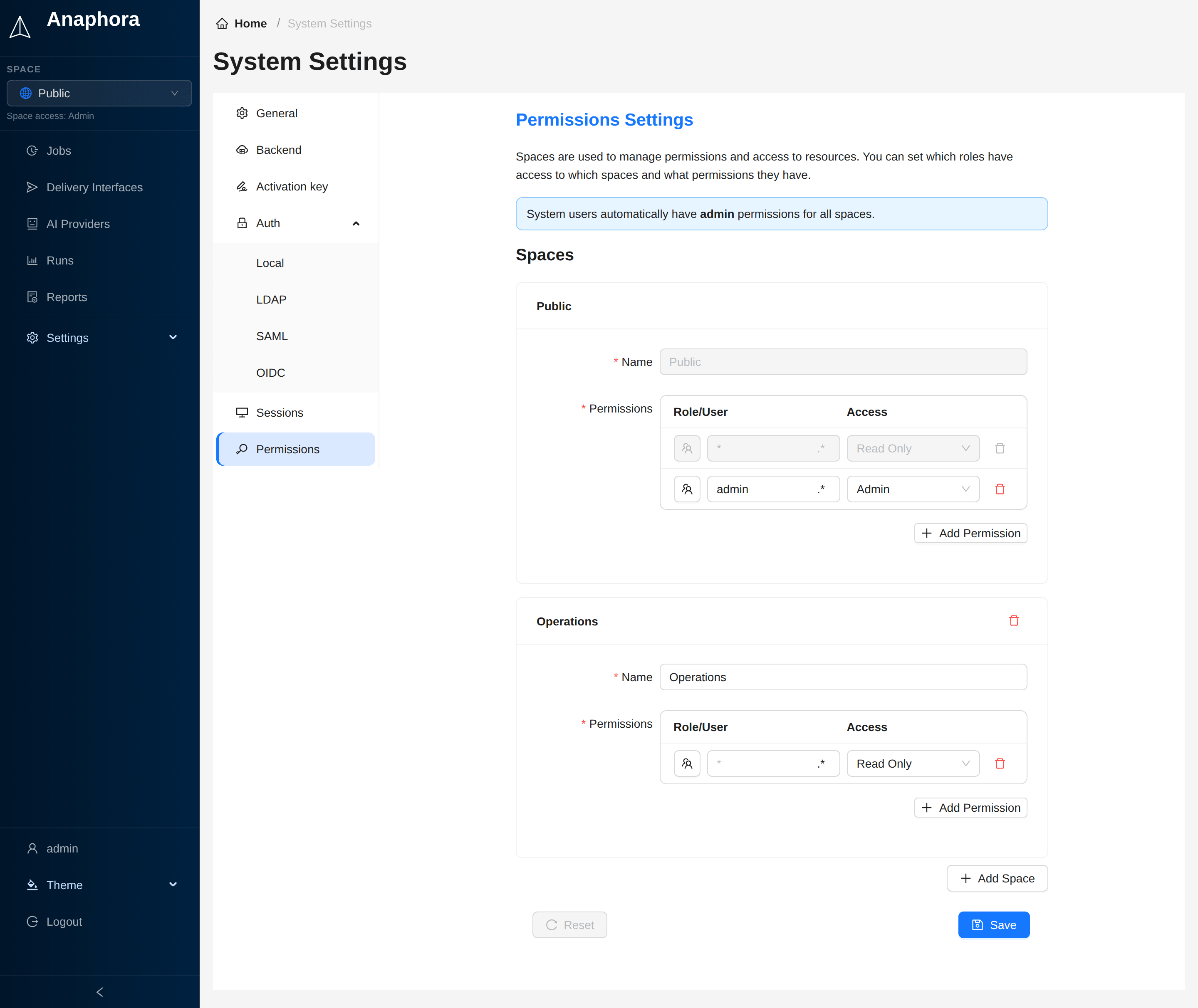
Overview
A Space is an isolated container that holds:
- Jobs and schedules
- Generated reports and run history
- Delivery interface configurations
- AI provider configurations
- User assignments and permissions
Users can belong to multiple Spaces with different roles.
Copying between Spaces
Resources cannot be shared between Spaces, but you can copy them:
- In the jobs list, select the jobs to copy to another Space
- Click Copy to other space
- Choose the target Space
- If applicable, select what to do with each associated delivery interface, for example Copy delivery interface or Exclude from copy
The same process applies to delivery interfaces.
To copy, you need these permissions in the Space the resource comes from:
| Resource | Permission needed |
|---|---|
| Job | ReadWrite |
| Delivery interface, AI provider, template | Admin |
Creating Spaces
- Go to Settings > System > Permissions
- Click Add Space
- Enter the Name of the Space
- Click Save
Assignment process
- In the Space, click Add Permission
- Select user or role, and enter the name in Role/User
- Select the Access (Admin, Read Write, Read Only)
- Click Save
System users automatically have admin permissions for all spaces.
You can assign roles to users, and then assign the roles to Spaces. This way, you do not need to assign each user individually.
How a permission matches
Each permission is for one user or for one role. Click the icon in front of the name to switch between the two.
- A user permission matches the username.
- A role permission matches one of the roles of the user. A local user has the Roles of its account. An LDAP, SAML or OIDC user has the groups that the identity provider sends: the Groups parameter for SAML and OIDC, the Group name property for LDAP.
- The name matches whole and with case. With the
.*button on, the name is a regular expression, and the button next to it sets what the expression must match:^$: the whole name.ops.*matchesopsandops-admin, notdevops. A new permission uses this mode.~: any part of the name.adminalso matchesnotadmin, and@corp\.comalso matchesx@corp.com.evil.org. A permission saved before this button existed uses this mode until you change it, and the log names it at each start. Before you change it, check the names it must match:adminsmatched/team-a/adminsas a part, and as the whole name needs.*/admins.
- The settings page refuses an expression that is not valid. An expression that runs longer than 100 ms on a name
matches nobody until Anaphora restarts, and the log names it. Do not repeat a group that repeats something itself,
such as
(a+)+: on some names it takes seconds. - A permission with an empty name matches every user.
- When more than one permission matches, the user gets the highest access.
- A system user gets Admin access to every space, with or without a permission. A local user is a system user when its
System role is
system. An LDAP, SAML or OIDC user is a system user when one of its groups is in the system groups of its method.
A change of the permissions applies at the next request of the user. The roles of an LDAP, SAML or OIDC user come from the login: a change of the groups at the identity provider applies at the next login.
Multi-Space users
Users can belong to multiple Spaces, by direct assignment or through roles:
User: alice@company.com
├── Space: Engineering → Access: Admin
└── Space: Marketing → Access: Read Only
Role: DevOps Team
└── Space: DevOps → Access: Read Write
Switching Spaces
To switch between Spaces, use the Space selector in the sidebar.

All resources you create or manage are scoped to the selected Space.
Use cases
Team separation
| Space | Purpose |
|---|---|
| Engineering | Technical dashboards, system metrics |
| Marketing | Campaign dashboards, analytics |
| Executive | Summary reports, KPIs |
| DevOps | Infrastructure monitoring, alerts |
Client isolation (MSP)
For managed service providers:
| Space | Client |
|---|---|
| Client-Acme | Acme Corp reports |
| Client-Beta | Beta Inc reports |
| Client-Gamma | Gamma Ltd reports |
Each client's data is completely isolated.
Environment separation
| Space | Environment |
|---|---|
| Production | Live dashboards, real alerts |
| Staging | Test jobs, validation |
| Development | Experimental configurations |
Administration
Only system administrators can create and manage Spaces. Space admins can only manage resources within their assigned Spaces.
See Authentication for details on user roles and permissions.
Best practices
Permission principle
Assign the minimum permissions that each user needs:
- Most users: Space Read Only
- Job creators: Space Read Write
- Team leads: Space Admin
- IT/Operations: System Admin
Next steps
- Self-monitoring: monitor system health
- Backup: configure backup and recovery