Local Authentication
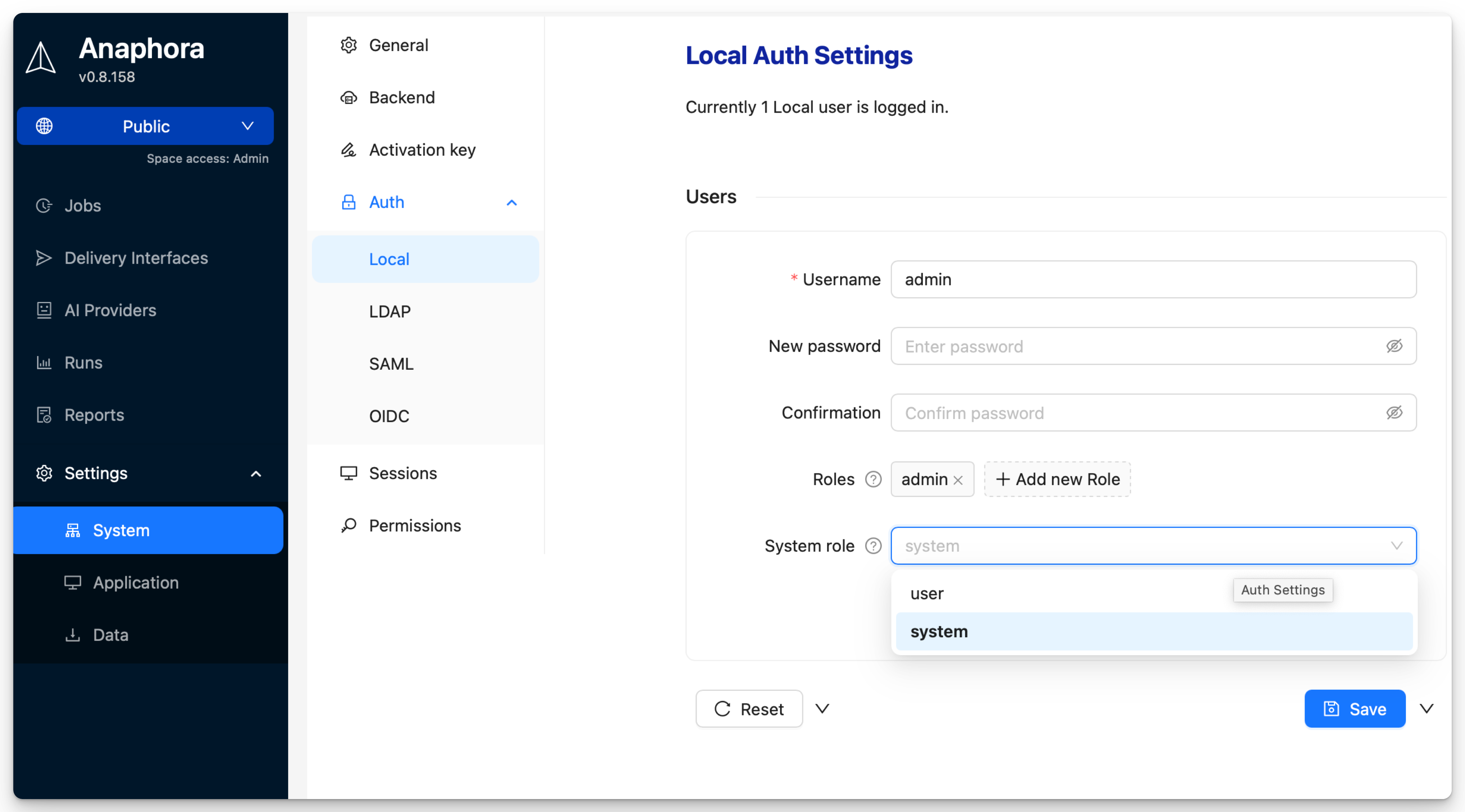
Overview
Local authentication provides:
- Built-in user database — No external dependencies
- User management UI — Easy administration
- Quick setup — Works out of the box
User Management
Adding Users
- Navigate to Settings > System Settings > Auth > Local
- Click Add New User
- Enter username, email, and password
- Assign roles
- Choose user type: Normal user or system user
- Save
User Properties
| Field | Description | Required |
|---|---|---|
| Username | Unique login identifier | Yes |
| Password | Initial password | Yes |
| Roles | Assigned permission groups | No |
| System Role | User or system user designation | Yes |
System Role
The System Role controls access to system-wide settings:
| Role | Description |
|---|---|
| user | Normal user, cannot access system settings |
| system | Can access and modify system settings. Has automatically access to all spaces. |
note
System settings include authentication configuration, space configuration, backup settings, and other global options.
Most users should have the user role.
Managing Local Users
All local users will be managed by the system user alone. Users cannot modify their own accounts. System users can change the password or add roles to existing users. The system user can also delete the local users.
warning
Deleting a user removes their access immediately. Jobs created by the user will remain.
When to Use Local Auth
| Scenario | Recommendation |
|---|---|
| Small team (under 10 users) | Local auth is sufficient |
| Testing/development | Local auth for simplicity |
| No corporate IdP available | Local auth as primary method |
| System user | Local is required |
| Enterprise environment | Consider LDAP, SAML, or OIDC |
| Compliance requirements | Use enterprise SSO |