The AI step
The AI step of a capture flow asks an AI provider about what the flow captured. One answer can fill several variables, each with its type. When it needs to, the AI can also look at the earlier runs of the job, do exact math, read the captured pages, and keep a notebook from one run to the next. The step stays a normal capture action: a Conditional block, a Break and the delivery act on the variables it fills, as on any other variable. The AI fills variables and its notebook. It never sends, clicks or stops anything.
One request to the model, with its answer, is a model call. A step with no tool makes one model call. A step with tools makes more: each time the AI uses a tool, the next model call sends the result back to it.
The AI step needs an AI provider in the space: see AI providers. The model calls of the step, of its trials and of the assistant all count on the token budget of that provider.
Add an AI step
- Open the job, then the Capture tab, and switch on Advanced.
- Click the + between two actions, and choose AI step ("A model reads the captures and fills variables"). Put the step after the actions that capture what the AI must read.
The step opens in its own page. On the left, All actions goes back to the flow, and the list under it opens another action. An action with no title shows its type and what tells it apart, for example "Capture value · errorsNow". A new step starts with three short screens. A step that exists opens in the editor. On the Jobs list, a robot mark shows the jobs that have an AI step.
The first time: Describe, Review, Try
-
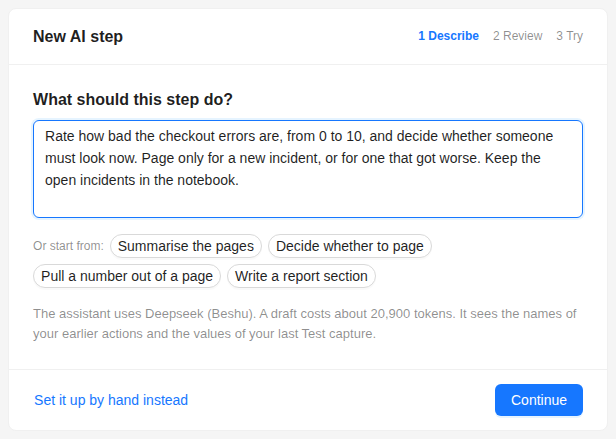
Describe. Under What should this step do?, say in your words what the step looks at, what it decides and what it writes. Or click a starting point: Summarise the pages, Decide whether to page, Pull a number out of a page or Write a report section. The line under them names the provider that the assistant uses, what a draft costs (for example "A draft costs about 20,900 tokens."), and what the assistant sees: the names of your earlier actions, and the values of the last run or of your last Test capture. Click Continue: the assistant writes the step from your words.
-
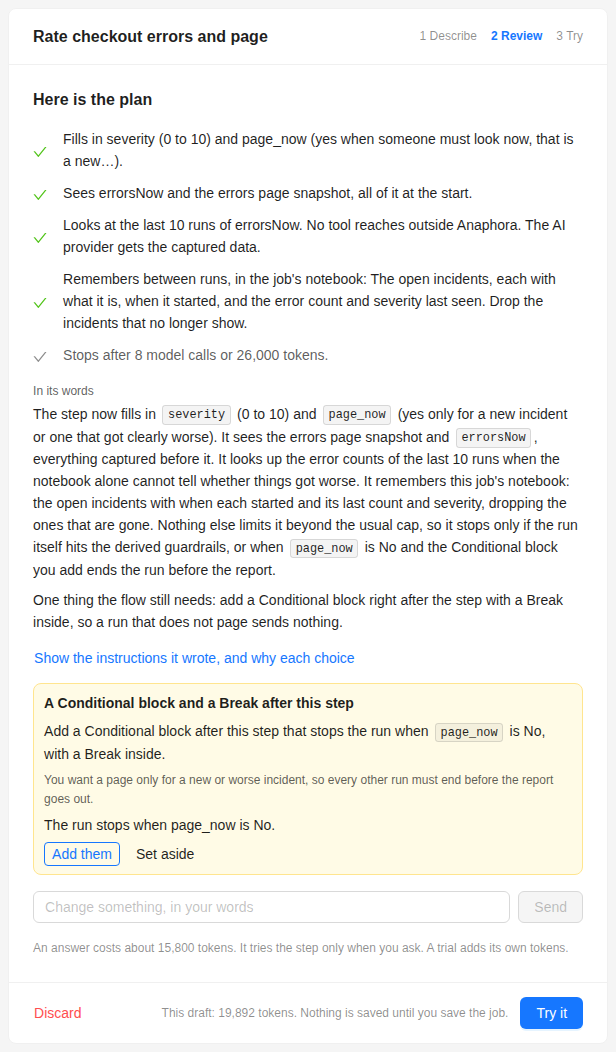
Review. Here is the plan lists, with check marks, what the step fills in, what it sees, what it does, what it remembers and when it stops. Until Anaphora has the estimate, the token limit reads "a token limit still being estimated". In its words is the summary of the assistant.
- Show the instructions it wrote, and why each choice shows the instructions and the changes of the assistant. Each change has Undo: see The assistant.
- When the flow lacks something the plan needs, a card says what. With nothing missing, there is no card. For example, no snapshot comes before the step: Something to add to the flow, where Add it puts a Navigate with a snapshot before the step, and I have one sets the card aside. Or the report must go out only in some runs: A Conditional block and a Break after this step, for example "The run stops when page_now is No.", where Add them puts the block and its Break after the step. See The assistant.
- To change the plan, write in Change something, in your words and click Send. The line under the field says what an answer costs.
- Discard removes the new step and what the assistant wrote for it.
The footer says what the draft cost, for example "This draft: 19,892 tokens. Nothing is saved until you save the job." Then click Try it. The step runs on the values of the last run of the job, else on your last Test capture. When Try it is off, its tooltip says why. With no run and no Test capture, click Run a Test capture of the actions before it first.
-
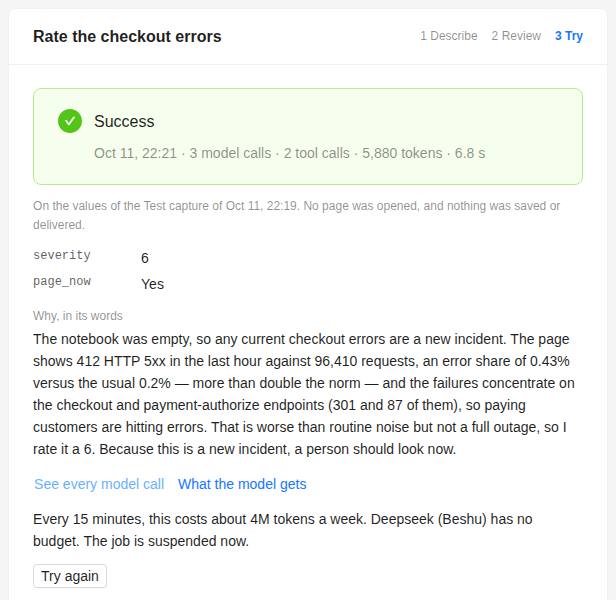
Try. The step runs once on those values. The screen shows the status, the values it filled in, Why, in its words, the tokens, and what the step costs in a week at the schedule of the job. See every model call and What the model gets open the details (see Try it). To change something, write in Not what you wanted? Say what to change, or click Try again. After a trial that failed, Try again is under the error. When a limit stopped the trial, Raise the limit and try again raises that limit (its tooltip says from what to what) and runs the step again. Done opens the editor in the simple view. Adjust by hand opens it with Advanced on.
Set it up by hand instead, on the first screen, skips the assistant and opens the editor with the defaults. A step made either way gets the new settings: see Steps set up before the AI step. When the space has no AI provider, the first screen says so and links to AI Providers.
Nothing is saved until you save the job. Done does not save it. When you click a link in the app and the job has changes that are not saved, Anaphora asks Leave without saving?: Stay keeps the page, Leave drops the changes. A reload or a closed tab gets the question of the browser. A link that you open in a new tab is not asked about.
The editor
The screenshot shows an earlier version of this screen; the sections are now named Instructions, Variables, Rows it can see, Tools and Try it, and the right card has the tabs Trial and Assistant.
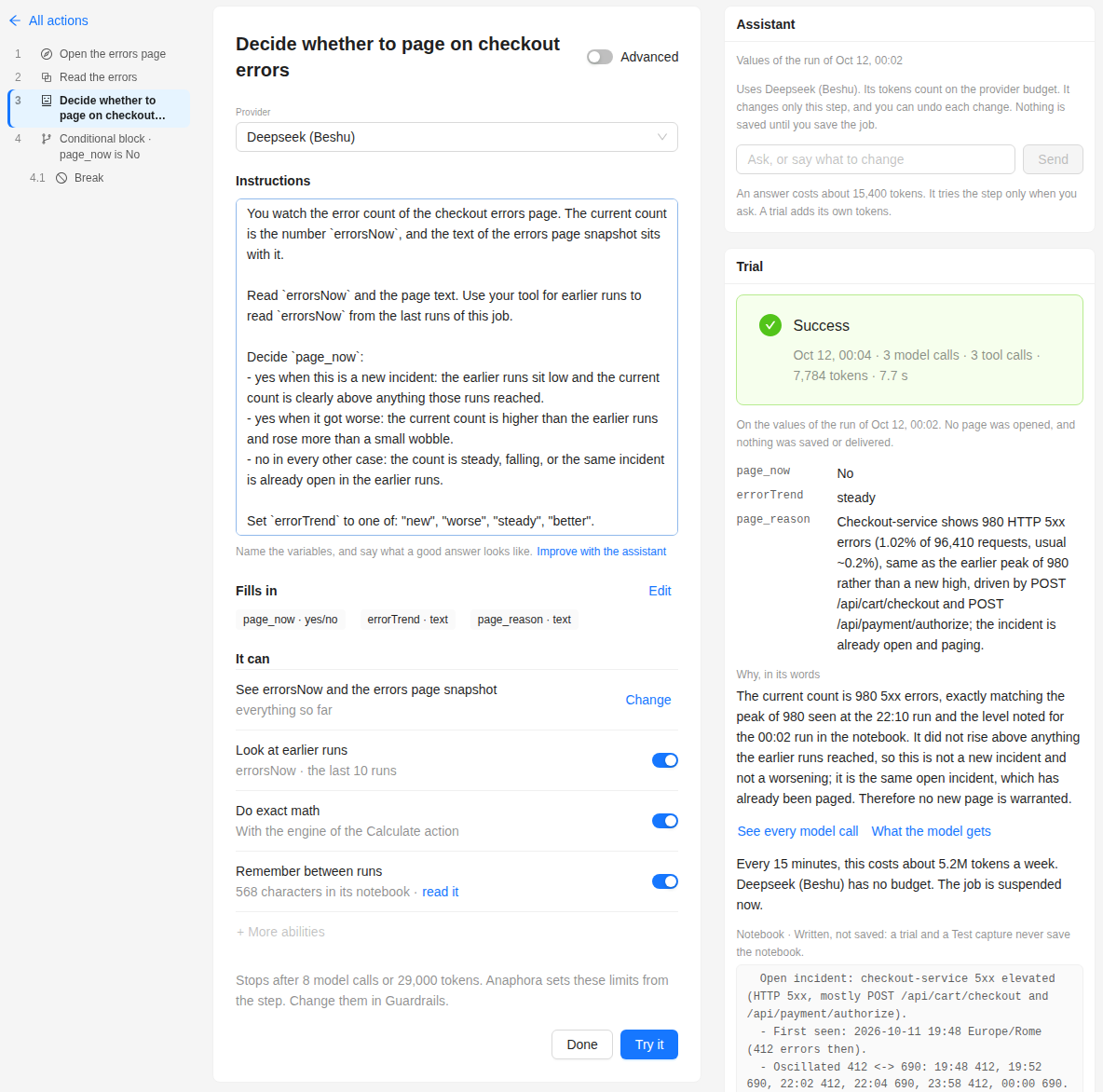
The step is in the middle. It is a card of numbered sections: 1 Instructions, 2 Variables, 3 Rows it can see, 4 Tools and 5 Try it. With Advanced on, its four sections are 3 to 6, and Try it is 7. Each section has the same name in every place of the editor: the headings, the cards and Undo buttons of the assistant, and the text of a trial.
Each number has a mark:
- A check shows that the section is complete.
- A warning shows that Try it lacks something, for example a provider, instructions, or a variable name that Save refuses. It also shows when the model sees no row.
- Tools has no mark, because it is optional.
- Try it gets its check after a good trial. It loses the check when you change the step.
The card on the right has two tabs: Trial and Assistant. A trial that starts shows its tab. A finished trial shows the answer under its own label, Answer. It folds the reasons under Why it answered this, and shows the totals as one chip. On a narrow screen, the flow is a row of pills and the card has less padding. Done and Try it stay in a bar at the foot of the card. Click the title to rename the step.
The simple view
-
Who answers: the AI provider of the step. A step whose provider is not in the space shows "A provider that is gone: choose one".
-
Instructions: what the AI must do, in your words. Name the variables, and say what a good answer looks like. The assistant offers Improve my instructions.
-
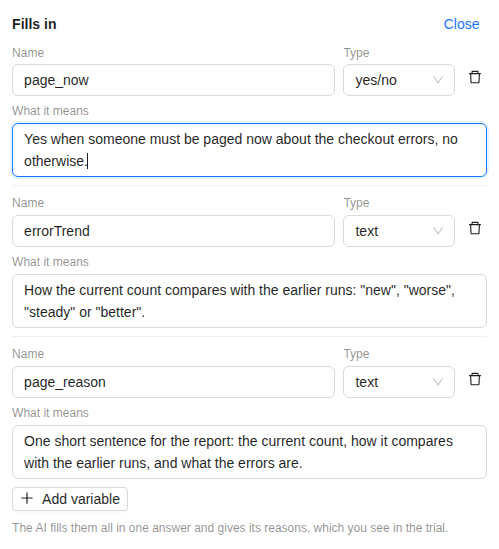
Variables: the variables that the step fills, for example
severity · number. Edit variables shows one block per variable: Name, Type and a bin to remove it on one line, and under them What it means, a text box at the full width. Add variable adds a block. -
Tools: one line per tool that is on, each with a switch. + Add a tool opens a menu with the tools that are off, and with Browse, Fetch from the web and MCP servers, which are not available yet.
-
A grey line that says when the step stops. It shows only for a limit that you or the assistant set by hand, or for a step that has no limit. A limit that Anaphora sets from the step needs no words here. For example:
- "Stops after 8 model calls or 40,000 tokens. Change it in Advanced › Limits." when a limit is set by hand;
- "No limit (a step set up as before has none)." for a step set up before the AI step existed.
Until Anaphora has the estimate, a token limit that it sets from the step reads "a token limit not known yet". With no values of a run or of a Test capture, it reads "a token limit set from the values of the run". See Limits.
-
Warnings, under the step, for a setting the step cannot work with. For example "A tool needs at least 2 calls. Raise Most model calls in Advanced › Limits.", or an Answer length limit too small for the rows of Variables (Anaphora then uses 256 tokens).
-
For a step set up before the AI step that sends more than 50,000 tokens a run, a warning with Use the new settings: see Steps set up before the AI step.
-
Done goes back to the flow. Try it runs the step once: see Try it. A cost chip next to it shows about what the first call sends, for example "About 1,344 tokens". Its tooltip says that a tool can add calls and names the provider whose budget it uses. The assistant card does not repeat the cost.
Variables
With one variable of type text, number or HTML, and no What it means, the step works as the AI action always did: the answer text goes into that variable. With two or more variables, a yes/no, or a What it means, the AI fills them all in one JSON answer and gives its reasons too. From then on, the step keeps this kind of answer, also with one row. You read the reasons in the trial and on the Runs page. They never go into a variable or into the report.
| Type | What the AI gives |
|---|---|
| text | Text |
| number | A number |
| yes/no | Yes or no, stored as 1 (yes) or 0 (no) |
| HTML | An HTML fragment for the report |
A name follows the rules of any variable name, and is unique in the job. The name reasoning is not available. A
name that breaks a rule shows the reason under its row, and Try it and What the model gets refuse to start
until you correct it, for example "Row 2 of Variables: the name severity is already a variable of this job."
What it means goes to the AI with the name. Say the range and what each value means, for example
0 to 10. 7 and above: page someone now. For a yes/no, say in words when the answer is yes, not 1 and 0: the
model answers yes or no, and Anaphora stores it as 1 or 0. The editor shows the value as Yes or No: on the card of
the step in the flow, in the trial and in the words of the assistant.
The screenshot shows an earlier version of this screen; this section is now named Variables.
When the answer is not valid JSON, the step makes one more model call: the AI gets its answer back and corrects it. That call counts on the provider budget and under the limits. When the step is at its model call limit or at its token limit, it makes no such call. When the answer is still not valid JSON, the step fails with "The AI step failed: the answer is not valid JSON." Details, under the status, shows the answer as the model wrote it.
A yes/no variable holds 1 for yes and 0 for no. A Conditional block on it shows one field, Condition
("Pick Yes or No"), with is Yes and is No. is Yes stores equals 1, and is No stores equals
0. For example, a Conditional block with Variable page_now and Condition is No, with a Break
inside, stops the run when the answer is no.
The card of the block in the flow, the list of actions on the left of the step page, and the Conditions tab of a
Test capture say "page_now is No". The value that a Test capture tested shows as "(No)" or "(Yes)". A block saved
with not equals 1 shows as is No, and stays stored as it is until you pick again. Other comparisons, such as
greater than 0, and other variables keep Condition operation and Condition value. In the report, write
{% if page_now == 1 %}.
The tool lines
| Line | What it does | What it costs |
|---|---|---|
| See … | Names the snapshots and variables that the step sees, and how: "everything so far", "only the ticked rows", or "reads a snapshot only when needed". Change opens Rows it can see. | What is sent at the start goes again with each model call |
| Look at earlier runs | Reads the values of earlier runs of this job. The line names the variables and the number of runs. | Each use takes one more model call |
| Do exact math | Calculates an expression with the engine of the Calculate action, so the AI does not guess the result. | Each use takes one more model call |
| Remember between runs | Keeps a notebook for the job. The line gives its size; read it opens Memory between runs. | The notebook goes with each model call |
| + Add a tool | The abilities that are off. Browse, Fetch from the web and MCP servers show too, but they are not available yet. |
Each model call sends the whole conversation again. That is why a step with tools costs more than one model call.
Advanced
Switch on Advanced to see every setting. The headings stay the section names. Switch it off to go back to the simple view. Variables shows the block of each variable, and four sections open under it. Each section says in one line what it is set to, also when it is closed.
Rows it can see
The screenshot shows an earlier version of this screen; this section is now named Rows it can see.
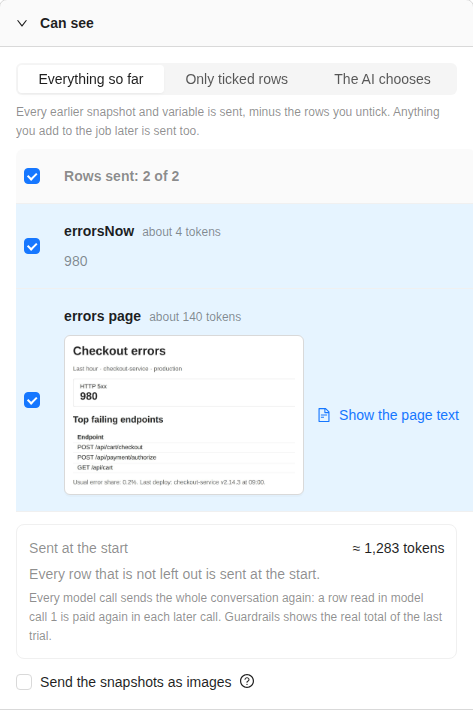
What the AI gets of the earlier snapshots and variables. Three modes:
- Everything so far: every earlier snapshot and variable, minus the rows you untick. Anything you add to the job later is sent too. This is the default.
- Only ticked rows: only the rows you tick. Anything you add later stays out until you tick it.
- The AI chooses: the AI gets the names and sizes of the ticked rows, and reads the ones it needs. Anything you add later is offered too. In this mode the AI reads the text of the pages, never images. Use it when the step sees large snapshots that it does not always need.
The header of the rows says how many rows go, for example "Rows sent: 2 of 3". In The AI chooses mode it says "Rows offered: 2 of 3". Closed, the section says it in one sentence, for example "Sends 2 ticked rows." or "Offers 3 rows. The AI reads the ones it needs."
Each row shows its value and its size, for example "about 140 tokens". The size is the size of the text that the step sends for the row. One calculation gives the size of a row, the estimate of What the model gets and the request of a run, so they agree. The rows show the values that the line at the top of the card on the right, above Trial and Assistant, names, for example "Values of the run of Oct 10, 13:51": the values of What the model gets and Try it. Use the Test capture instead and Use the run instead change all of them. A variable that these values do not have shows no value and no size: What the model gets says "Empty in this run." for it. A template has no trial: its rows show the last Test capture. A snapshot row shows the top left of the page in a thumbnail of 240 × 160 px: click it to see the whole image. Show the page text opens Page text of …: the text that the model reads, with its size. With no Test capture, it says "No page text yet. Run a Test capture."
The page text is the text of the page as compact lines: one element a line, a link once with its address, at most
50,000 characters a snapshot. A text that only separates, such as |, ·, •, - or —, is left out. A step set up
before the AI step sends the page text as JSON, as it always did: Page text of … then shows the JSON and says "A
step set up as before sends the page text as JSON."
The box under the rows gives the size in tokens: Sent at the start and, in The AI chooses mode, If the AI reads every row once. A row that the AI reads in model call 1 is paid again in each later model call. Limits shows the real total of the last trial. With no estimate, the box says why:
- "No estimate yet: the step is not complete. Instructions: fill it in." The sentence names the part to fill in.
- "No estimate yet: it needs the values of a run or of a Test capture."
- "No estimate: the Preview of the step failed. Open What the model gets to see why."
- "Estimating what is sent at the start…" while the estimate is on its way.
Send the snapshots as images also sends the snapshots as pictures. Each image costs tokens, on every run. The box is off when the model does not read images, or when Anaphora does not know yet. The line under the box says why, for example "Anaphora does not know yet whether this model reads images. Run the provider's Test." See What this model can do.
Tools
The screenshot shows an earlier version of this screen; this section is now named Tools.
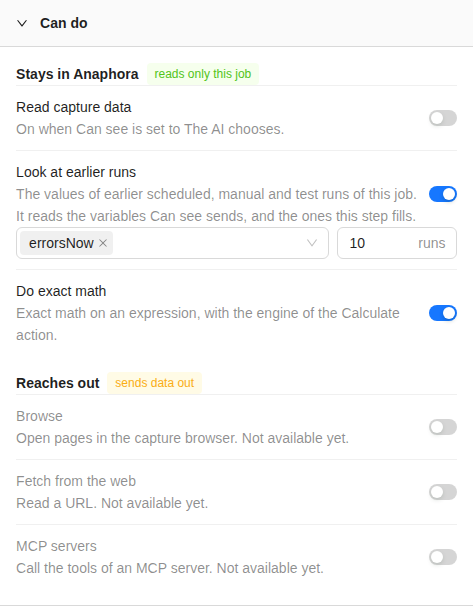
The tools of the step, in two groups.
Stays in Anaphora (reads only this job):
- Read capture data: reads one row of this run. Its switch follows Rows it can see: it is on when Rows it can see is set to The AI chooses.
- Look at earlier runs: the values of earlier scheduled, manual and test runs of this job. Choose the Variables it
reads, and how many runs, from 1 to 50. By default, it reads the variables that Rows it can see sends, and the ones this
step fills. A run never reads from earlier runs a variable that Rows it can see does not send. When you choose one, the
section names it, for example "Rows it can see does not send errorsNow, so the step does not read it from earlier runs."
The AI gets the start time of each run in the time zone of the server (
TZ), with the zone named, for example "2026-10-11 19:48 Europe/Rome (UTC+02:00)", or "2026-10-11 17:48 UTC" on a server in UTC. It gets the status of each run as the Runs page shows it: "Success", "Error", "Delivery issue" or "Stopped at Break". - Do exact math: exact math on an expression, with the engine of the Calculate action.
Reaches out (sends data out): Browse, Fetch from the web and MCP servers. These are not available yet.
Each variable in Variables it reads must be a variable of the flow. When you rename or remove one, the job cannot be saved until you remove it from the list too.
Closed, the section names the tools that are on, for example "Look at earlier runs, Do exact math, and the notebook tools." The notebook tools come with This job's notebook under Memory between runs: with no other tool, the section says "Uses the notebook tools. No other tool." With no tool at all, it says "No tool: one answer from what it sees."
Memory between runs
The screenshot shows an earlier version of this screen; this section is now named Memory between runs.
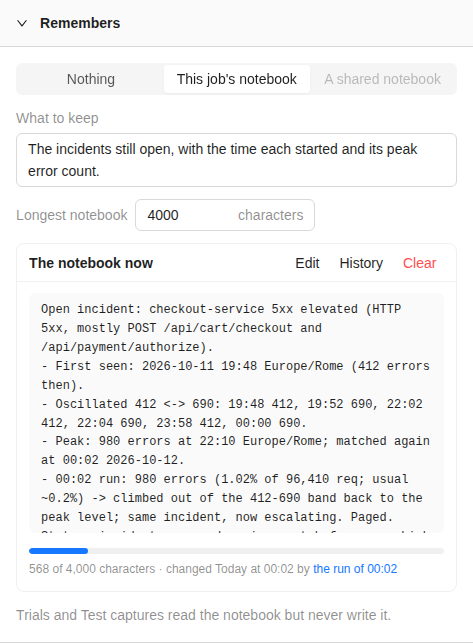
- Nothing: each run starts from nothing. This is the default.
- This job's notebook: one text for the job, shared by all its AI steps. In each run, the AI can read it and replace it.
- A shared notebook: not available yet.
What to keep tells the AI what to write in the notebook, for example "The incidents still open, with when they started and the last severity." Longest notebook is the limit in characters, 4,000 by default. The AI cannot save a longer text: Anaphora refuses it and tells the AI the limit.
When the job is saved, The notebook now shows the text, its size against the limit of the saved job, and when it changed and by whom, for example "52 of 4,000 characters · changed Today at 11:21 by a person". A change by a run says "by the run of 00:02", a link to the runs of the job.
- Edit changes the text. Its Save stores the notebook at once, not with the job. Save is off while the text is longer than the limit of the saved job. A Save of the text as it was changes nothing, and adds nothing to History.
- History lists the last 50 versions, each by a run or by a person.
- Clear empties the notebook. History keeps the text.
The limit of the saved job is the largest Longest notebook of its AI steps. When you set a larger Longest notebook in this step, a second line says so, for example "The new longest notebook, 20,000 characters, applies after you save the job." Until you save the job, Save keeps to the old limit.
A run saves the notebook when the step ends, and only when the step succeeds or stops with Keep what is filled in and go on. Trials and Test captures read the notebook but never write it. A trial on the values of a run reads the version that run read: see Try it. A copy of the job, and a job made from a template, start with an empty notebook.
Limits
The screenshot shows an earlier version of this screen; this section is now named Limits.
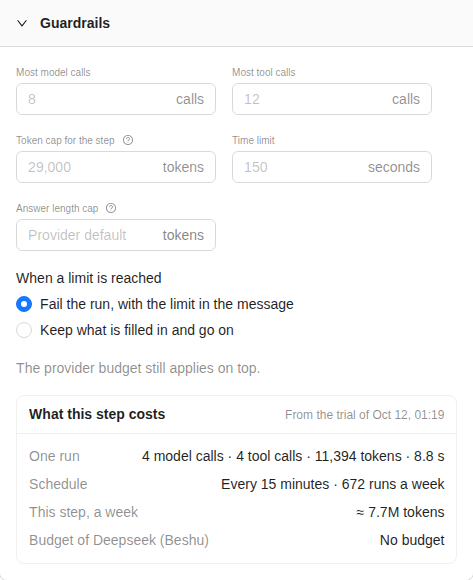
Limits on one run of the step, on top of the provider budget. An empty field shows in grey the value that applies, set from the step. Type a number to set your own. Until Anaphora has the estimate, an empty Token limit for the step says "Being estimated". With no values of a run or of a Test capture, it says "Set from the run": the run sets the limit from its own values.
| Field | Limit | When empty |
|---|---|---|
| Most model calls | Model calls | With no tool: 1 for one plain answer (one variable, no yes/no, no What it means), 2 for a JSON answer (see Variables). With a tool: 8 |
| Most tool calls | Tool calls | With a tool: 12. With no tool: 0, and the field does not show unless the step sets it |
| Token limit for the step | Tokens of all the model calls together, input and output | Set from what the model gets, Most model calls and the hidden reasoning of the model: see below |
| Time limit | Seconds for the whole step, 10 to 600 | 60 with no tool, 90 with one, plus 60 when the provider reasons: 120 and 150 (see below). A step set up as before has no time limit |
| Answer length limit | Tokens of one answer | The default of the provider |
An empty Token limit for the step gets:
first call × (1 + most model calls) + reasoning per call × min(2, most model calls)
rounded up to a thousand, at least 8,000 and at most 2,000,000. The first call is the size of what the model gets, in The AI chooses mode plus every row read once. The most model calls are Most model calls, with no tool at most 1 or 2. The reasoning per call is room for the hidden reasoning of a model that thinks: 8,000 tokens. The limit counts it once for a step of one model call, and twice for more, because a tool loop sends the reasoning of a call back with the next call. It is 0 when the Test of the provider saw no reasoning. A provider that was not tested, or was tested before Anaphora looked for reasoning, counts as one that reasons: click Test again to find out. See What this model can do.
For example, the step of the image above has a tool, and its first call sends about 1,344 tokens. It gets a token limit of 29,000: 1,344 times 9, plus 8,000 twice, rounded up. On a provider whose Test saw no reasoning, the same step gets 13,000. A step with no tool and a JSON answer that sends about 12,700 tokens gets 55,000: 12,700 times 3, plus 8,000 twice, rounded up.
An empty Time limit makes room for the hidden reasoning too, by the same rule: one model call can write 8,000 tokens of reasoning, and that takes about 53 seconds. So a provider that reasons adds 60 seconds: 120 with no tool, 150 with one. The step of the image above gets 150 seconds: 90 for its tool, plus 60.
The token limit is checked before each model call: a call whose request would pass the limit is not made. Its answer is not known before, so a run can pass the limit by the answer of its last call. The tooltip of the field says the same. The request of each later call holds the whole conversation, also the hidden reasoning of a model that thinks: see Hidden reasoning.
With no tool, the step makes one model call, and one more when its JSON answer is not valid. The grey line and the token limit count these model calls only, also when you set Most model calls higher.
A step set up before the AI step gets no limit at all: one model call, no time limit and no token limit, as before. Its fields show No limit, and Most model calls shows 1. When you set one field, every limit applies. See Steps set up before the AI step.
When a limit is reached:
- Fail the run, with the limit in the message: the default. The message names the limit and the model call, for example "Stopped after model call 2: 11,450 tokens, and model call 3 would send about 10,000 more, over the token limit of 12,000", or "Stopped before model call 1: its request of about 14,200 tokens is over the token limit of 12,000".
- Keep what is filled in and go on: the run keeps the variables that the AI filled so far, and goes on.
What this step costs uses the last trial: One run (model calls, tool calls, tokens, time), the Schedule of the job in runs a week, This step, a week, and the budget of the provider, with a bar. When a week of this step does not fit in the budget, a warning says so: when the budget is reached, every job of that provider pauses. Send less to the model, run the job less often, or raise the budget. Ask the assistant for a cheaper setup asks the assistant for help.
Only a trial that finished gives a cost of a week. A trial that stopped or failed spent what it spent until then, not what a run spends. The box then says why it gives no cost of a week, for example "This trial stopped at the token limit, so the cost of a week is not known." or "This trial failed, so the cost of a week is not known." The trial card says the same.
Steps set up before the AI step
An AI step that you add now gets the new settings, with the assistant or with Set it up by hand instead: the page text as short lines, at most 50,000 characters a snapshot, a token limit and a time limit. When you save a new job, all its AI steps get them, also the steps that come from a template. When you save a job that exists, only the AI steps that you added get them, also a step that you clone in the flow.
A step that was saved before the AI step keeps what it sent: the page text as JSON, and no limit. A copy of a job or of a template keeps its steps as they are. The step changes only when you give it a new setting, for example a tool or a limit, or when you click Use the new settings.
When the estimate of such a step is over 50,000 tokens, the editor shows a warning, for example "This step was set up before the AI step. It sends the page text as JSON, about 387,917 tokens a run, with no token limit." and "The new settings send the page text as short lines, at most 50,000 characters a snapshot, and add a token limit and a time limit." Use the new settings changes the step in the form, as any other change does. Save the job to keep it.
Try it
Try it runs the step once, as a run does, and keeps nothing. It opens no page, it does not change the job, the notebook or the variables, and it delivers nothing. Its tokens count on the provider budget.
Try it is off until the step has a provider, instructions and a named variable. One reason shows next to the button and in its tooltip, for example "Choose who answers first.", "Write what the model should do first." or "Name the variable it fills first." Try again follows the same rule. A trial that does not run is one alert with Try again. When the cause is the key of the provider, the alert links to the provider.
Try it uses the values of the last run of the job. When the job has no run yet, it uses your last Test capture. The line at the top of the card on the right, above Trial and Assistant, says which, for example "Values of the run of Oct 10, 13:51". Use the Test capture instead and Use the run instead switch between the two. The assistant, What the model gets and the rows of Rows it can see use the same values.
A trial on the values of a run reads what that run read: Look at earlier runs gets the runs before it, and the notebook is the version that run read, the last one saved before it started. What the model gets shows the same notebook. When History no longer keeps that version, the trial reads the notebook as it is now, and says so. A trial on a Test capture reads the notebook as it is now.
A trial that takes more than 10 minutes stops with "The server did not finish in time. Try again." What the model gets stops the same way after 60 seconds.
A job that is not saved yet has no run, so Try it uses its Test capture. With no run and no Test capture, the button is off and the editor says "Run a Test capture first." Click Run a Test capture to get the values. A template cannot be tried: try the step in a job made from the template.
The screenshot shows an earlier version of this screen; the trial is now a tab named Trial, next to Assistant.
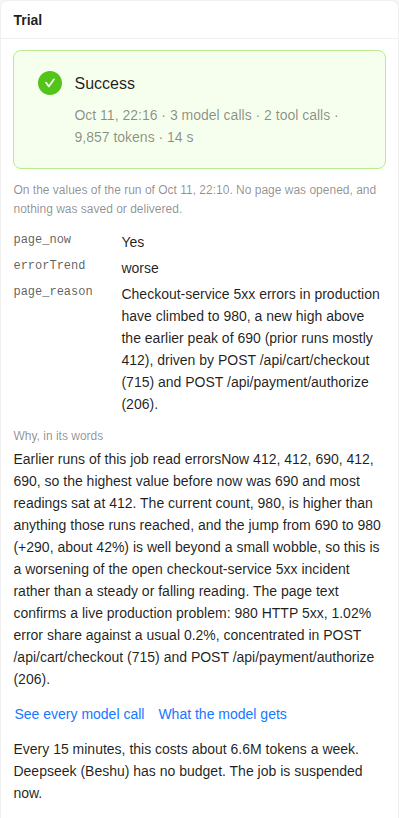
The Trial panel shows:
- the status: Success, a stop such as Stopped at the token limit, or Error, with the time, the model calls, the tool calls, the tokens and the duration, for example "3 model calls · 2 tool calls · 9,857 tokens · 14 s". A stop says whether the step kept values, for example "Stopped at the model call limit after 1 model call. Nothing was filled." When no model call finished, the stop says so, for example "Stopped at the time limit before any model call finished. Nothing was filled." When no model call was made (for example the budget is spent), it says "No call was made." After an error, Details shows the answer as the model wrote it;
- the values it ran on, for example "On the values of the run of Oct 10, 13:51. No page was opened, and nothing was saved or delivered.";
- the value of each variable: a yes/no as Yes or No, and HTML as its text;
- Why, in its words: the reasons of the AI. After a stop, The AI's last answer;
- See every model call and What the model gets;
- the cost of a week at the schedule of the job, and its share of the provider budget, for example "Every 15 minutes, this costs about 1.1M tokens a week: 12% of the weekly budget of OpenAI." A provider with no budget gives no share, for example "Every 15 minutes, this costs about 6.6M tokens a week. Deepseek (Beshu) has no budget." When the job is suspended, the line adds "The job is suspended now.". A daily job says "Daily at 04:05, this costs about …". A trial that did not finish gives no cost of a week, and the line says why, for example "This trial stopped at the time limit, so the cost of a week is not known.";
- the notebook: what the trial would write, line by line, or "Not changed: the step wrote nothing new." A line says which version it read, for example "It read the notebook as that run did: saved Oct 12, 00:00.";
- after a second trial, the previous trial in one line. Compare shows the two answers side by side, and marks each value that changed, or says "No change".
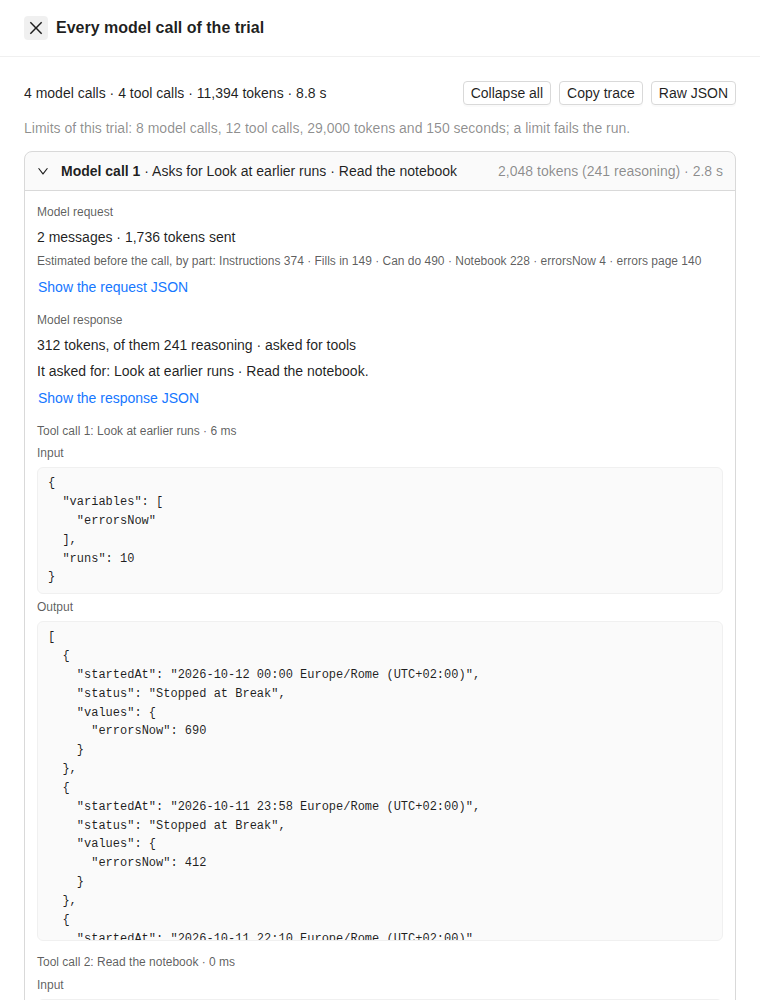
See every model call opens Every model call of the trial. Each model call shows what it did ("Asks for Look at earlier runs · Read the notebook", "Answers"), its tokens and time. Open one to see the model request: its size and, for the first model call, the estimate by part, for example "Instructions 374 · Variables 149 · Tools 490 · Notebook 228 · errorsNow 4 · errors page 140"; the model response and how it ended ("ended with an answer", "asked for tools"); and each tool call with its input and output. A long tool output is cut in the trace, and says so, for example "Cut: the trace keeps the first 8,192 characters of 21,394." Copy trace and Raw JSON are at the top. With two or more model calls, Expand all is there too.
A model call with hidden reasoning gives its size in the heading, for example "2,048 tokens (241 reasoning) · 2.8 s", and in the model response, for example "312 tokens, of them 241 reasoning · asked for tools". See Hidden reasoning.
Under the buttons, one line gives the limits that the trial applied, for example "Limits of this trial: 8 model calls, 12 tool calls, 29,000 tokens and 150 seconds; a limit fails the run." A step with no tool gets 0 tool calls, and the line leaves them out, for example, on a provider that does not reason, "Limits of this run: 2 model calls, 12,000 tokens and 60 seconds; a limit fails the run." With Keep what is filled in and go on, the line ends "at a limit the step keeps what it filled." A step set up before the AI step has no limit, for example "Limits of this run: none." A trace from before Anaphora kept the limits has no such line.
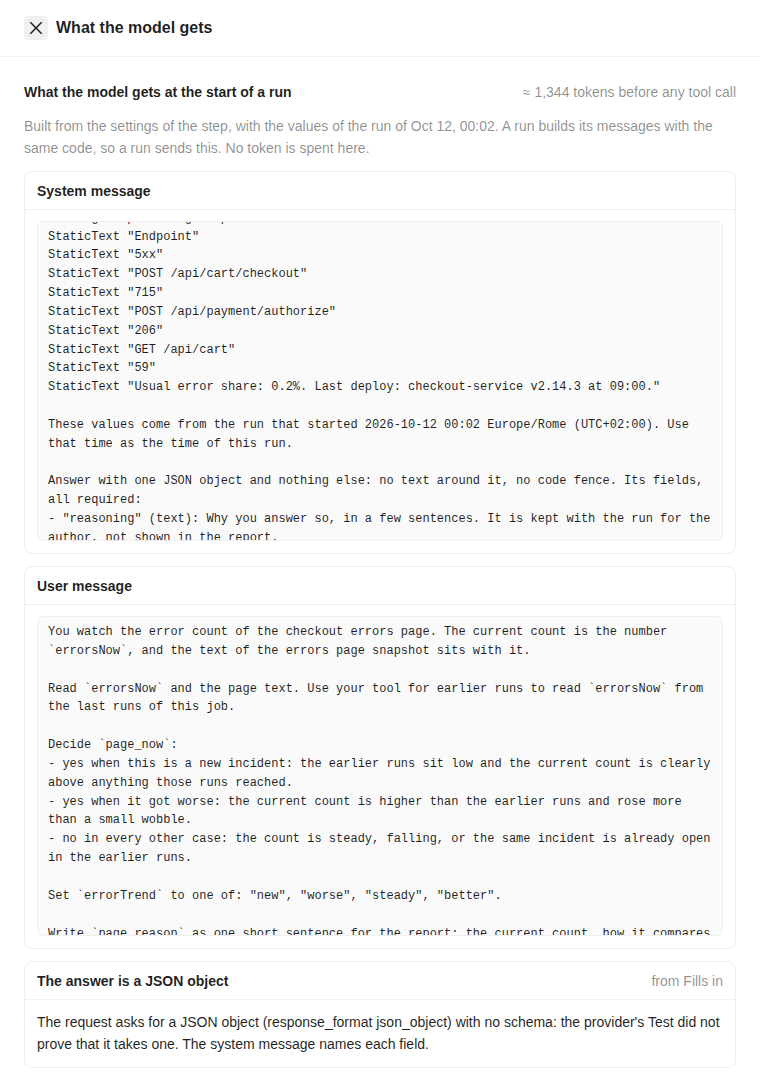
What the model gets opens what the first model call sends: the system message, the user message, how the answer is asked for (from Variables), the tools it may call (from Tools), the tokens of each part, and Not sent, and why. A variable of an earlier action that has no value in these values shows there as "Empty in this run." Copy as text, View the messages as JSON and Copy the step as JSON are at the end. Anaphora builds it with the same code as a run, and calls no model: it spends no token. Before the first trial, the Trial panel links to it too.
The system message tells the model when its values were captured, in the time zone of the server, so that the model does not guess the time. A run says "This run started 2026-10-11 22:10 Europe/Rome (UTC+02:00)." A trial says where its values come from, for example "These values come from the run that started 2026-10-12 00:02 Europe/Rome (UTC+02:00). Use that time as the time of this run.", or "… the Test capture that started …". When the start of the Test capture is not known, it says "These values come from a Test capture. This trial started …". A step set up before the AI step gets no such line. The estimate counts it.
How the answer is asked for follows the provider's Test (see What this model can do):
- The answer must fit this JSON schema, with the schema: the Test proved that the provider takes one.
- The answer is a JSON object: "The request asks for a JSON object (response_format json_object) with no schema: the provider's Test did not prove that it takes one. The system message names each field."
- The answer is JSON, asked for in words: "The request asks for no format: the provider's Test found no JSON answers. The system message asks for the JSON and names each field."
The assistant
The screenshot shows an earlier version of this screen; the assistant is now a tab named Assistant, next to Trial, and the cost of an answer is the tooltip of Send.
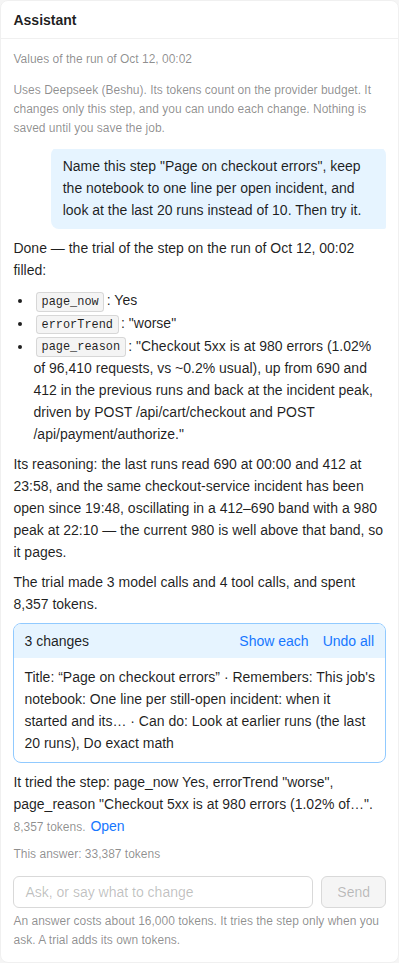
The Assistant tab sits next to Trial. It works on the same values as Try it. Write a question or a change in Ask, or say what to change, and click Send. The tooltip of Send says what an answer to the text in the field costs, and changes while you type. On the first screen of a new step, a line under the field says what a draft costs. For the text in the field:
- A question that does not ask for a trial counts two model calls: one that makes the changes, and one that answers. For example "An answer costs about 16,000 tokens. It tries the step only when you ask. A trial adds its own tokens."
- A question that asks for a trial, and each question on the Try screen of a new step, counts one more: one model call asks for the trial, the next reads it, the last answers. For example, before the question of the image went, the line said "An answer costs about 25,800 tokens. It may try the step. A trial adds its own tokens."
After the answer, "This answer: 33,387 tokens" says what it cost, its trials included: 25,030 tokens of the assistant and 8,357 of the trial. From then on, the line gives what the last answer of the same kind cost, without its trials: an answer that may try the step and one that may not each have their own figure. Until an answer of that kind comes, the line gives the estimate, as under the empty field of the image.
The assistant may change this step, and only this step: the title, the Instructions, Variables, Rows it can see, the tools that stay in Anaphora, Memory between runs and Limits. Each change is a card with its reason, and goes into the step at once.
- The changes of one answer are a group, for example "5 changes", with one line per change, such as "Instructions: adds “Page only for a new incident.”". Show each shows the cards. A change of Instructions shows the lines it added and removed.
- Undo on a card takes that change back. The card then says Undone. When you changed that field after the assistant, Anaphora asks first, for example "You changed Instructions after the assistant. Undo anyway?": Keep mine keeps your text, Undo takes the field back to what it was before the change.
- Undo all takes back every change of the group. When you changed some of its fields after the assistant, it asks once and names them: Keep mine takes back the other changes and keeps your fields, Undo takes back all. When you undid some of the changes already, the button is Undo the rest. When all are undone, the group says All undone.
Other things it only proposes, as a card for you to decide:
- A change of the step that you did not ask for: a suggestion. Apply puts it into the step, and Undo takes it back. A suggestion replaces the whole section, so one answer gives at most one suggestion for each section, with every change of that section in it. When the assistant suggests a section again in the same answer, the new card takes the place of the old one. A card that you applied stays, and the new one comes after it.
- Something to add to the flow, for example a snapshot before the step: Add it puts a Navigate with a snapshot before the step, and I have one sets the card aside.
- A Conditional block and a Break after this step, when the report must go out only in some runs. The card says when the run stops, for example "The run stops when page_now is No.". Add them puts the block and its Break after the step, and Open the block opens it. Set aside closes the card. The assistant gets the actions after the step, and reads a block on a yes/no variable as the editor shows it, for example "page_now is No". When a Conditional block with a Break after the step already tests the variable, it proposes no second one, and says in words what to change in it, if anything.
- A tool that reaches out of Anaphora: not available yet. Set aside closes the card.
- Something to check in another part of the flow: Set aside closes the card.
The assistant tries the step only when you ask for it, for example "try it", "test it" or "run the step", and on the Try screen of a new step. It tries at most three times in one answer. Each trial shows as one line with its answer and tokens, and Open opens its model calls. It never saves the job. Its text shows with simple formatting, such as bold, lists and code. Its links open only web addresses.
The assistant writes a time as the editor shows it, in your time zone and with no zone name, for example "the run of Oct 11, 16:02" or "the trial of Oct 11, 16:03". A time from earlier runs or from the notebook keeps the zone it names. It says a yes/no value as "Yes" or "No", as the editor shows it, and describes a yes/no variable as "yes when …, no otherwise". It gives each value of a trial word for word, as the trial shows it: a text in quotes, a yes/no or a number with no quotes, for example page_now: Yes and errorTrend: "worse". It writes a count with a comma between the thousands, for example "The trial made 3 model calls and 4 tool calls, and spent 8,357 tokens."
Its tokens count on the provider budget, like a trial. One answer stops at 12 model calls, 60,000 tokens or 120 seconds. The answer then says which limit stopped it, and the changes so far stay. A fourth trial in one answer is refused, and the answer goes on. When the server does not answer in time, the panel says "The assistant did not answer in time. Send your message again."
The conversation and the trials of a step stay while you switch the tabs of the job, and after you create the job. A reload of the page forgets them.
Explain this trial
At the end of Every model call of the trial, Explain this trial asks the assistant why the step did what it did. Next to the button, a line says what an explanation costs, for example "An explanation costs about 10,500 tokens." An explanation is one model call with no tool: the assistant reads a short summary of the trial in words, and changes nothing. The estimate adds about 3,800 tokens for the hidden reasoning of a model that thinks. It leaves them out when the trace shows no reasoning in any model call.
Explain this trial shows only when at least one model call of the trial finished. When none finished, for example because the token budget of the provider is spent, there is nothing to explain: the status says why.
The answer comes under Explained by the assistant, with suggestions: at most one for each section, as in the panel. Apply puts a suggestion into the step, and Undo takes it back. A proposal for the flow comes as a card, as in the panel. With nothing to change, it says "The assistant suggests no change." Ask again asks once more. "This answer: N tokens" says what it cost, for example "This answer: 10,454 tokens".
The screenshot shows an earlier version of this screen; the sections are now named Tools, Memory between runs and Variables.
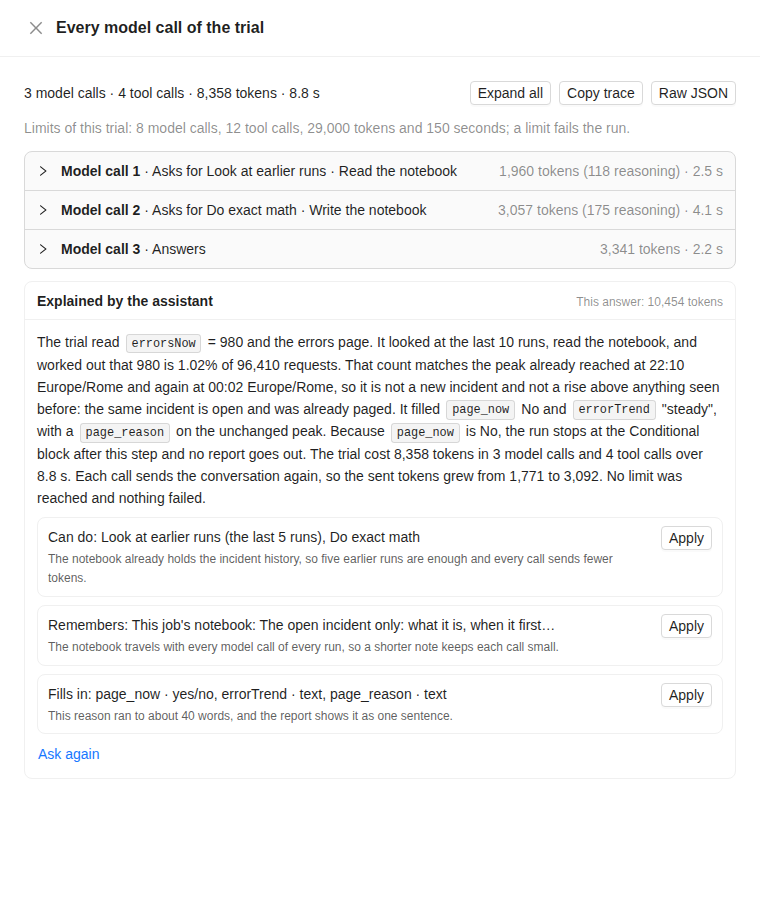
On the Runs page, the same button is Explain this run. There, a suggestion has Open the step instead of Apply: open the step, then make the change in the editor. Explain this run and Open the step need write access to the space. As in a trial, Explain this run shows only when at least one model call of the run finished.
Runs

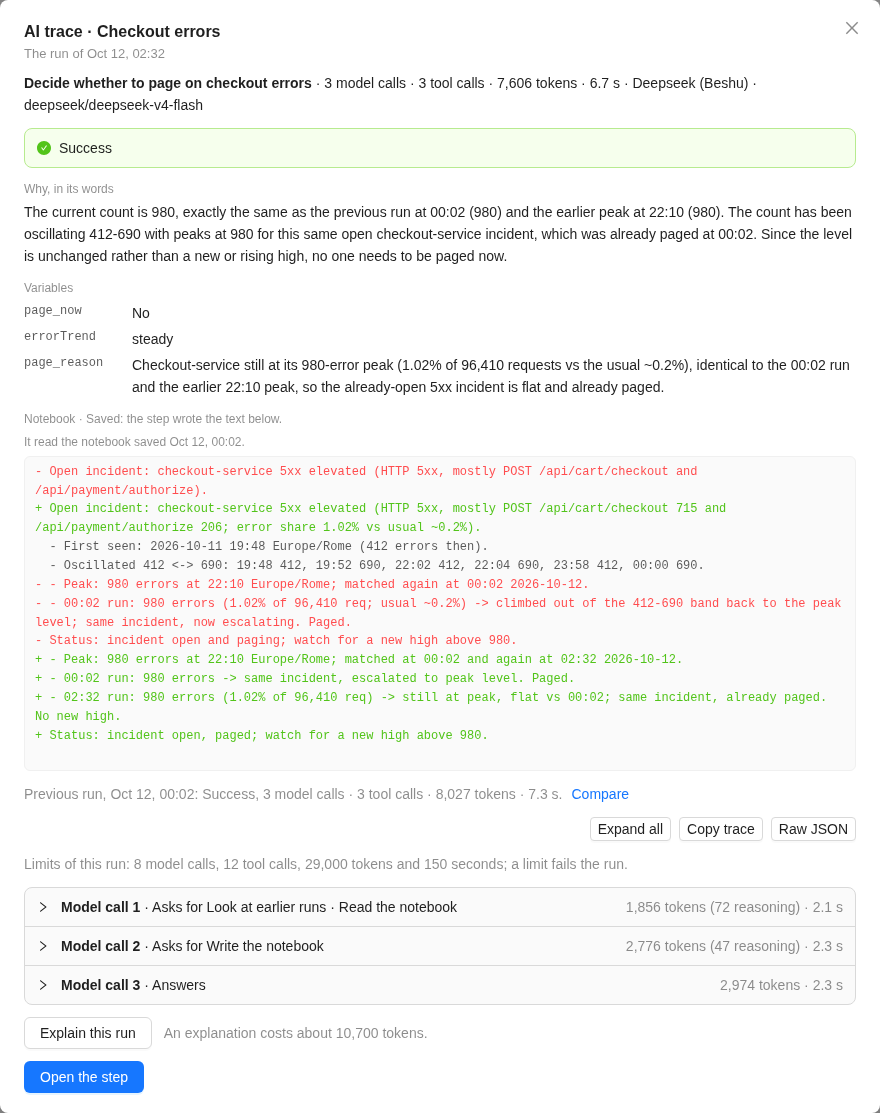
The AI column of the Runs page says what the AI steps of each run cost, for example "1.1k tokens · 2 model calls". Each phrase stays on one line: a narrow table breaks the cell only between them. Click its header to sort the runs by the tokens of their AI steps. When a limit stops a step, the column names the limit, for example "Token limit · 5 model calls": in yellow when the step kept what it filled and the run went on, in red when the run failed. When a step fails, it shows "AI error" in red. A run that a Break stopped has the status Stopped at Break. The message of a failed run names what happened, with no technical prefix. A run with no AI step shows "no AI".
Click the cell to open the AI trace of the run. It has the same content as a trial: the status, Why, in its words, the variables, the notebook, every model call, and the limits of the run, for example "Limits of this run: 8 model calls, 12 tool calls, 29,000 tokens and 150 seconds; a limit fails the run." It also has Compare with the previous run of the job, Explain this run when a model call of the run finished, and Open the step, which opens the step in the editor.
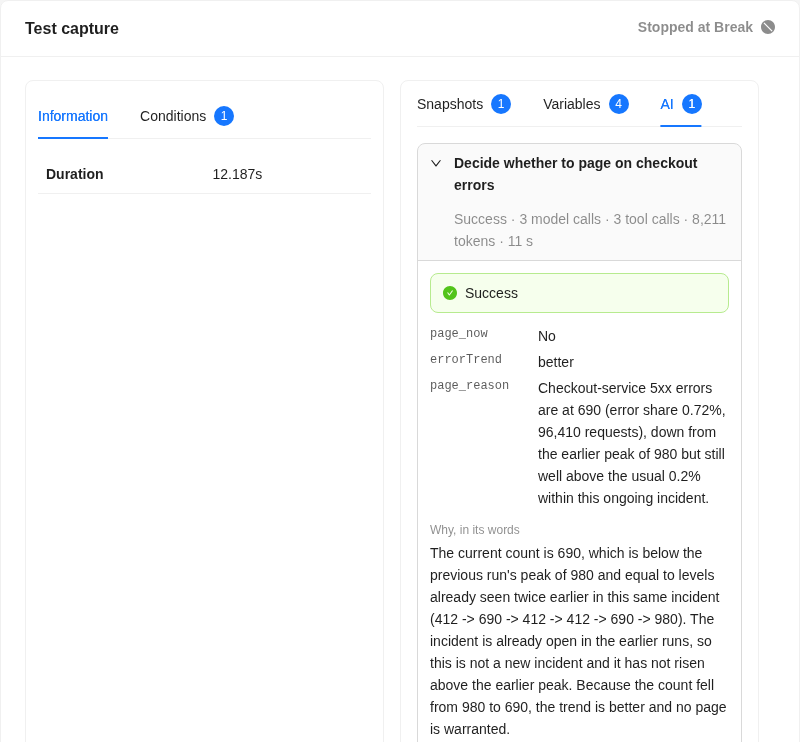
A Test capture runs the AI steps too. Its result has an AI tab with the same trace for each AI step, and the line "Limits of this Test capture: …". When the Test capture fails, there is no AI tab: the traces of the AI steps show under the error.
When a step stops at a limit
- Open the trace from the AI column. The status names the limit, and The AI's last answer shows where the AI was.
- Click Open the step, then open Limits.
- Do one of these:
- Raise the limit that stopped the step.
- Send less: Only ticked rows, or The AI chooses for large snapshots. Switch off a tool that the step does not need.
- Choose Keep what is filled in and go on, when a part of the answer is enough.
- Click Explain this run, and let the assistant suggest a change.
- Click Try it to check the change, then save the job.
Costs and limits
- An AI step costs tokens: what each model call sends, and its answer. Each model call sends the whole conversation again, so a step with tools costs more than a single model call. Costs show in tokens, not in money.
- An answer of the model longer than 1,000,000 characters fails the step.
- The provider budget applies on top of the limits. When a run reaches it, the job pauses, and every further model call on that provider is refused until the window rolls over. See Token budgets.
- Trials, Test captures and the assistant count on the same budget. They never pause a job: the budget refuses their next model call. The provider list splits the tokens by what spent them.
- The limits that you leave empty come from the step: see Limits. The grey line under the step shows only the ones you set by hand.
- A step set up before the AI step sends what it always sent, with no limit, until you change it: see Steps set up before the AI step.
- The values that the editor sends for a trial, a Preview or the assistant can be up to 8 MB. When they are larger with the images, the editor sends the snapshots as page text only, and the Assistant panel says so. When they are still too large, the editor says "The Test capture is over 8 MB as page text. Untick snapshots under Rows it can see, or capture smaller pages."
Hidden reasoning
A model that thinks, such as a DeepSeek model, writes hidden reasoning before its answer. Its tokens are part of the answer, and count on the provider budget. With a tool, the reasoning goes back to the model in each later model call (DeepSeek requires it), so one later call can send most of the token limit. The check of the token limit before each model call counts it. See every model call shows the reasoning of each model call: see Try it.
The Test of the provider notes whether the model writes hidden reasoning. Unless the Test saw none, the token limit and the time limit that Anaphora sets for a step make room for it: see Limits.
For AI agents and scripts
An AI agent or a script can set up, try and read AI steps through the JSON API of your instance, described at its
/llms.txt: see API for AI agents.